
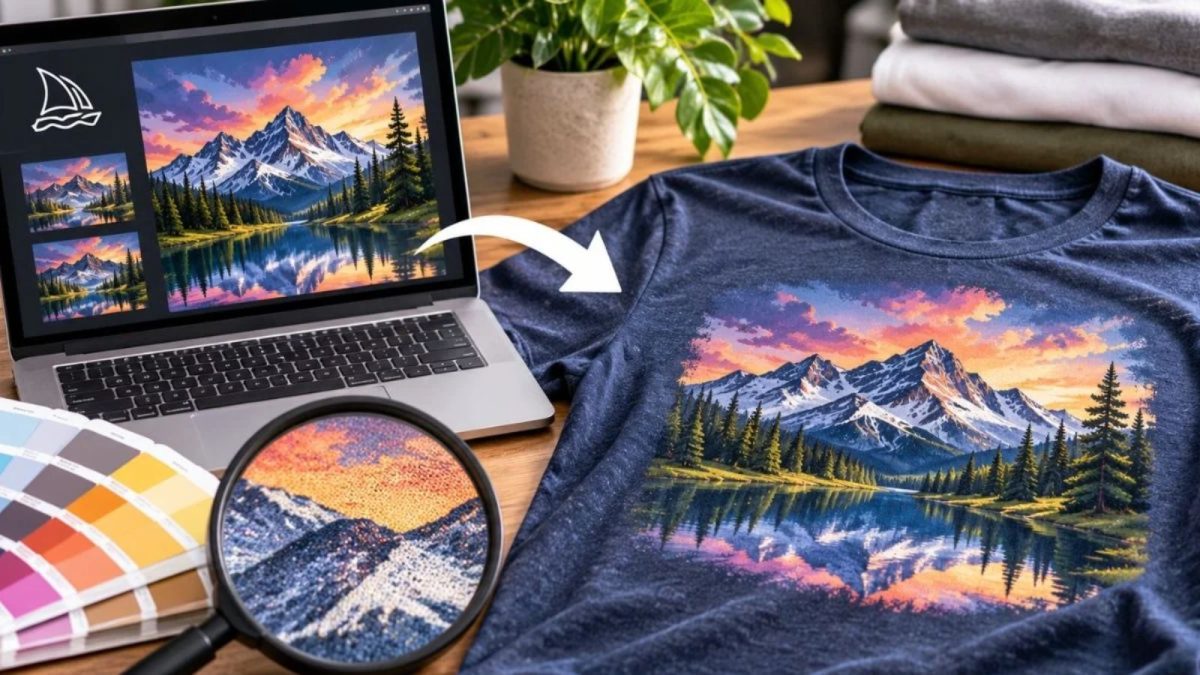
AI image generators such as Midjourney make it easier to create illustrations and graphics for custom apparel. However, an image that looks sharp on a screen may not produce the same result on fabric. Fine details can become blurry, colors may blend, and unwanted backgrounds can affect the finished design.
Preparing AI-generated art for shirts requires more than downloading an image. Before sending artwork to a printer, make these four adjustments to improve its clarity, appearance, and print readiness.
1. Improve Image Resolution and Detail
AI-generated images may not have the dimensions needed for apparel printing. A design that looks clear on a phone or computer can become pixelated when enlarged to fit a shirt.
Check the image dimensions against the intended print size. A resolution of 300 pixels per inch (PPI) at the final size is a common target, although the printer’s specifications should take priority. Simply enlarging a low-resolution image does not restore details missing from the original.
Inspect the artwork for:
- Blurry edges: Check outlines around lettering and important objects.
- Distorted details: Look for inconsistent hands, faces, patterns, or other AI-generated imperfections.
- Unwanted textures: Remove strange marks and visual artifacts.
- Fine elements: Make sure thin lines and small details remain visible when printed.
Use an upscaling tool or editing software when necessary, then review the result at its intended print size. Retouching may also be needed to correct details that automatic enhancement cannot fix.
2. Adjust the Composition for Shirt Placement
Artwork created for a digital canvas may not translate naturally to a T-shirt. Borders, backgrounds, and decorative elements that look appropriate in an illustration can make a garment design feel crowded.
Consider where the artwork will appear on the shirt. A large illustration may need more breathing room, while a compact graphic may work better on the chest or upper back.
Before printing, review these details:
- Background: Remove unnecessary elements if the main artwork should stand alone.
- Print boundaries: Keep important details away from the edges of the print area.
- Balance: Arrange the main subject and supporting elements so the design looks cohesive.
- Negative space: Leave enough room around the artwork to keep it visually clear.
- Garment size: Check whether the design needs adjustments for smaller shirts.
A digital mockup can help preview the design’s approximate size and placement. However, it is only a visual guide and does not guarantee an exact match with the finished print.
3. Adjust Colors and Contrast for Fabric Printing
Colors on a monitor may look different when printed because screens produce light, while printing relies on inks or other materials applied to fabric. This can affect brightness, saturation, and the visibility of individual elements.
AI-generated art for shirts often contains gradients and closely related shades that may blend during printing. Improve contrast by separating overlapping elements, strengthening important outlines, and simplifying colors where necessary.
The printing method also affects how artwork should be prepared:
| Printing Method | Artwork Considerations |
|---|---|
| Direct-to-Film (DTF) | Accommodates detailed, multicolored designs transferred from film to fabric. |
| Direct-to-Garment (DTG) | Prints directly onto the shirt; fabric type and color affect the result. |
| Screen Printing | Often requires color separation for multicolored artwork. |
Shirt color matters, too. A design prepared for a white shirt may need adjustments for black or other dark garments. Some printing processes use a white underbase to help colors appear more vibrant. Ask the printer whether this is necessary and whether the artwork needs other color adjustments.
4. Prepare the Correct File Format and Background
The final artwork must be saved in a format suitable for the printing process. Confirm the printer’s requirements before exporting the file.
PNG is commonly used for raster artwork because it preserves image quality and supports transparency. However, saving an image as a PNG does not automatically remove its background. The file must contain actual transparency if the design is intended to print without a surrounding background.
Before submitting the artwork, check:
- Transparency: Remove backgrounds that should not appear on the shirt.
- Edges: Look for leftover pixels, rough outlines, or pale halos.
- File format: Use the format requested by the printer. PNG may suit raster illustrations, while vector formats work well for scalable text and simple shapes.
- Dimensions: Confirm the file matches the intended print size and resolution.
- Color settings: Follow the printer’s requirements for color profiles and other production settings.
A file review before production can help catch problems while they are still easy to correct.
Get AI Artwork Ready for Printing
Preparing AI-generated art for shirts involves checking more than the image itself. Resolution, composition, color, and file setup all influence the finished result. Review the artwork at its intended print size and ask the printer to check the file before production. A sample print can also help identify issues before placing a larger order.
Retro Shirtz provides custom T-shirt printing in Omaha, NE, with an emphasis on attention to detail, quick service, and print quality. Whether an order involves one shirt or a larger quantity, the company applies care to every job.
Before submitting your design, contact Retro Shirtz to discuss the artwork and printing requirements.
Frequently Asked Questions
Is AI-generated artwork suitable for commercial T-shirt sales?
It can be, provided the artwork meets printing requirements, and its use complies with the image generator’s terms and applicable copyright laws. Check for protected characters, logos, and other third-party material before selling the design.
How should I fix lettering in an AI-generated shirt design?
Correct misspelled or distorted text in a graphics program. Check the font, spacing, alignment, and readability at the intended print size rather than relying on the lettering generated by the AI tool.
What is the benefit of combining Midjourney artwork with hand-drawn elements?
Hand-drawn additions can correct awkward details, refine outlines, and make a design more distinctive. They also allow greater control over lettering, shapes, and other elements.
Does editing AI-generated artwork make it completely original?
Not necessarily. Editing does not automatically establish ownership or eliminate copyright concerns. The applicable rules depend on the jurisdiction, source material, human creative contribution, and the image generator’s terms.
When should I create separate artwork for different shirt colors?
Create separate versions when garment color affects the design’s visibility. For example, dark outlines may need adjustment on dark shirts, while lighter designs may require different treatment on pale fabric. Review each version before printing.
Retro Shirtz Custom Bulk T-Shirts Printing near Regency inside Westroads Mall in Omaha
At Retro Shirtz, we understand the importance of logo design. So we provide free graphic design, including free logo design, with all standard custom shirt orders.
Our free graphic design services include:
- suggesting and implementing fonts
- changing the colors and layout of the fonts, and our team’s excellent skills at creating custom image assets.